AI document processing: how multimodal AI replaces manual order entry
Orders arrive by email, fax and LINE in every format, and staff spend hours keying them in. Multimodal AI reads PDFs and photos and fills in your system. How it works and how to keep it accurate.

Key takeaways
- Multimodal AI understands text, tables and layout together, so it can read orders from different customers in different formats.
- The key is matching what it reads back to your master data: customer codes, part numbers, units and prices.
- Route by confidence: create orders automatically when it's sure, send uncertain ones to a person, and bounce back the ones with problems.
- After rollout, people go from typing orders to checking exceptions, and both speed and accuracy improve.
Table of contents
In many trading-company and factory offices, there's a familiar scene: a sales assistant holds a customer's order in one hand while typing product names, part numbers, quantities and delivery dates into the ERP, field by field, with the other. The order might be a PDF attached to an email, a fax, an Excel file or even a photo sent over LINE (the messaging app most Taiwanese businesses use), and every customer's format is different.
The work is tedious, error-prone and hard to hand over. An experienced assistant knows that "Customer A's part numbers need the prefix removed" and "when Customer B says a case, it means 12 units," while a new hire can take months to get up to speed.
Multimodal AI (models that understand images and text together), which has matured over the past two years, offers a new way to handle this.
How is multimodal AI different from traditional OCR?
Traditional OCR (optical character recognition) does one thing: it turns an image into text. Working out which number is the quantity and which is the unit price takes rules written for each form layout. When a customer changes formats, the rules have to be rewritten.
Multimodal AI understands the whole document: it grasps the table structure, column headings and context, much as a person reads an order form. You can simply ask it to "put the items, quantities and delivery date from this order into a fixed format," and it can handle a new customer's documents too.
| Traditional OCR | Multimodal AI | |
|---|---|---|
| Output | One long string of text | Fields in the format you specify |
| New formats | Rules must be rewritten | Usually works as is |
| Tables, handwriting, photos | Error-prone | Better understanding, but still needs checking |
| Can it explain itself? | No | Yes: it can say where it read each value |
The real challenge: matching the data back to your system
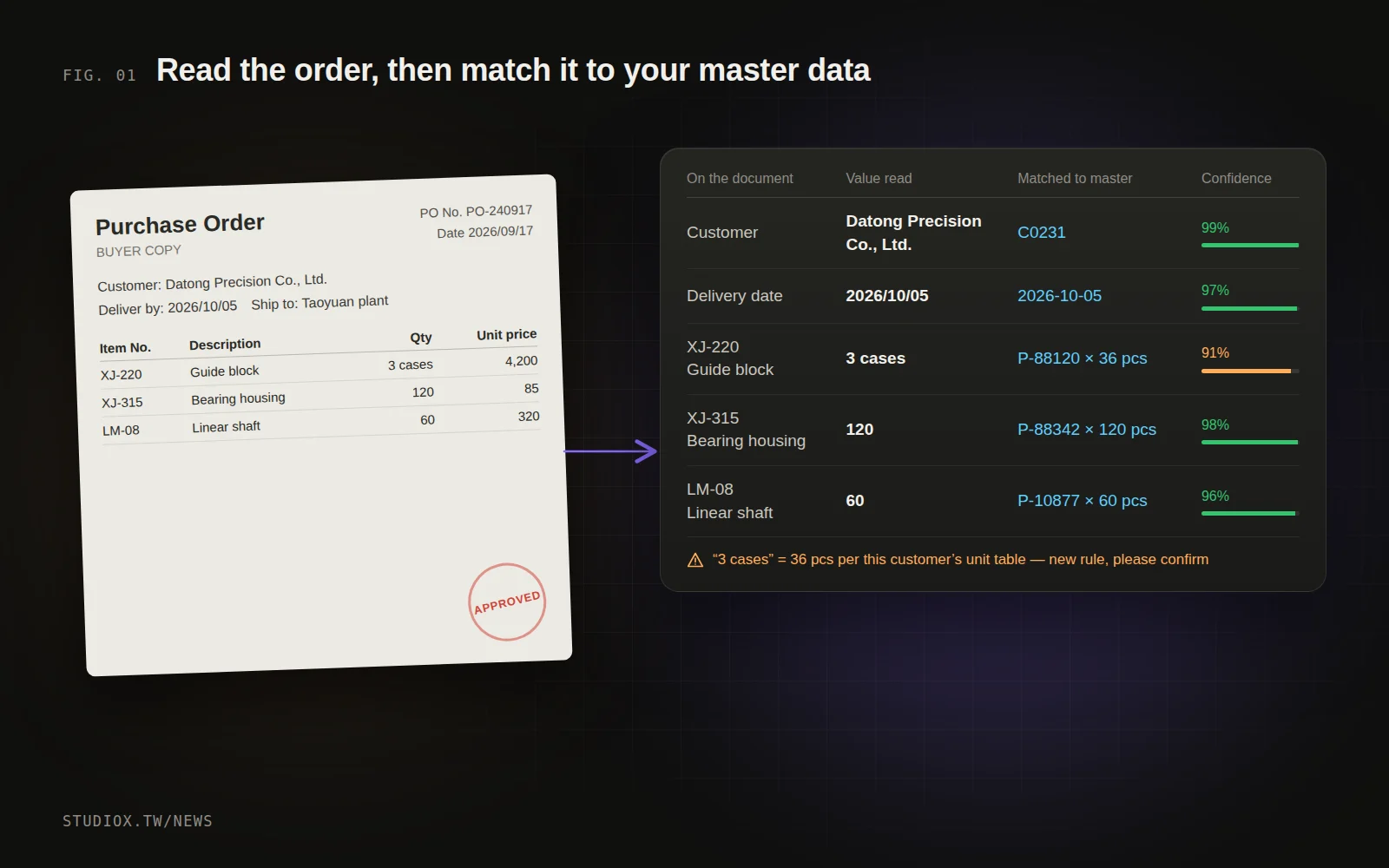
Reading the text is only step one. What really decides whether you can automate is mapping what was read to the master data in your system:
- Customer: the document says "Datong Precision," but in your system it's customer code C0231.
- Part number: the customer uses its own item number, XJ-220; internally, it's P-88120.
- Unit: the customer writes "3 cases," but your system needs "36 pcs."
- Price: prices on the document have to be checked against the quoted or contract price.
This step usually combines three kinds of data: customer and part master data, a cross-reference table for each customer (customer item number ↔ internal part number), and past order history. The AI decides which item each line refers to, and the system checks whether the result makes sense.
Route by confidence instead of going fully automatic
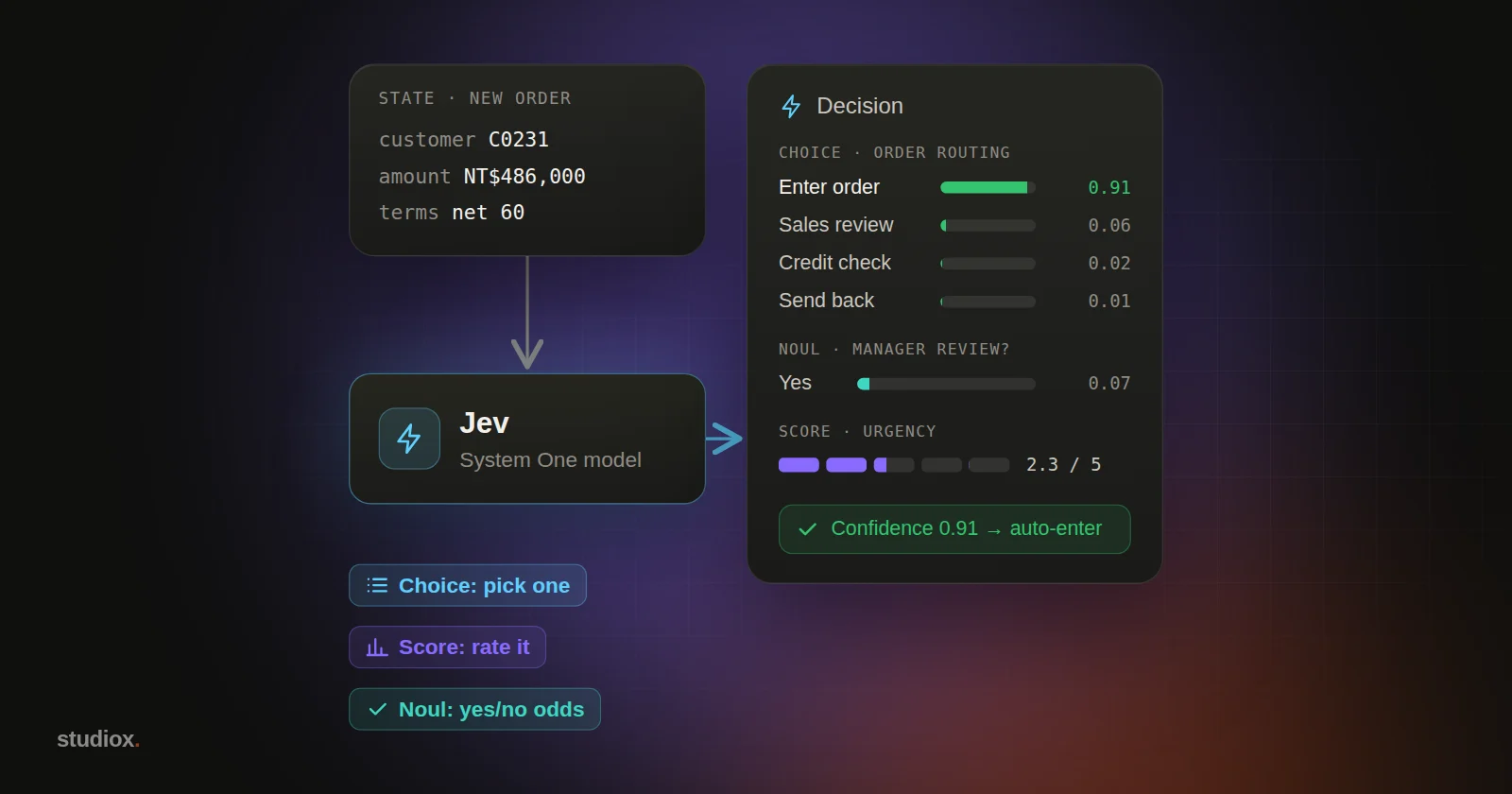
We don't recommend aiming for 100% automation from day one. A more practical approach is to send each order down one of three paths, based on the AI's confidence and the results of the checks:
- Create automatically: every field matches the master data, quantities and amounts are within a reasonable range, and the total adds up.
- Human review: some fields have low confidence (unclear handwriting, for example), there's a new customer item number, or the quantity is much larger than usual. The system shows what the AI read side by side with the original document, so the assistant only has to check, correct and confirm.
- Send back or contact the customer: required information is missing (no delivery date, no item number), or the document contradicts itself.
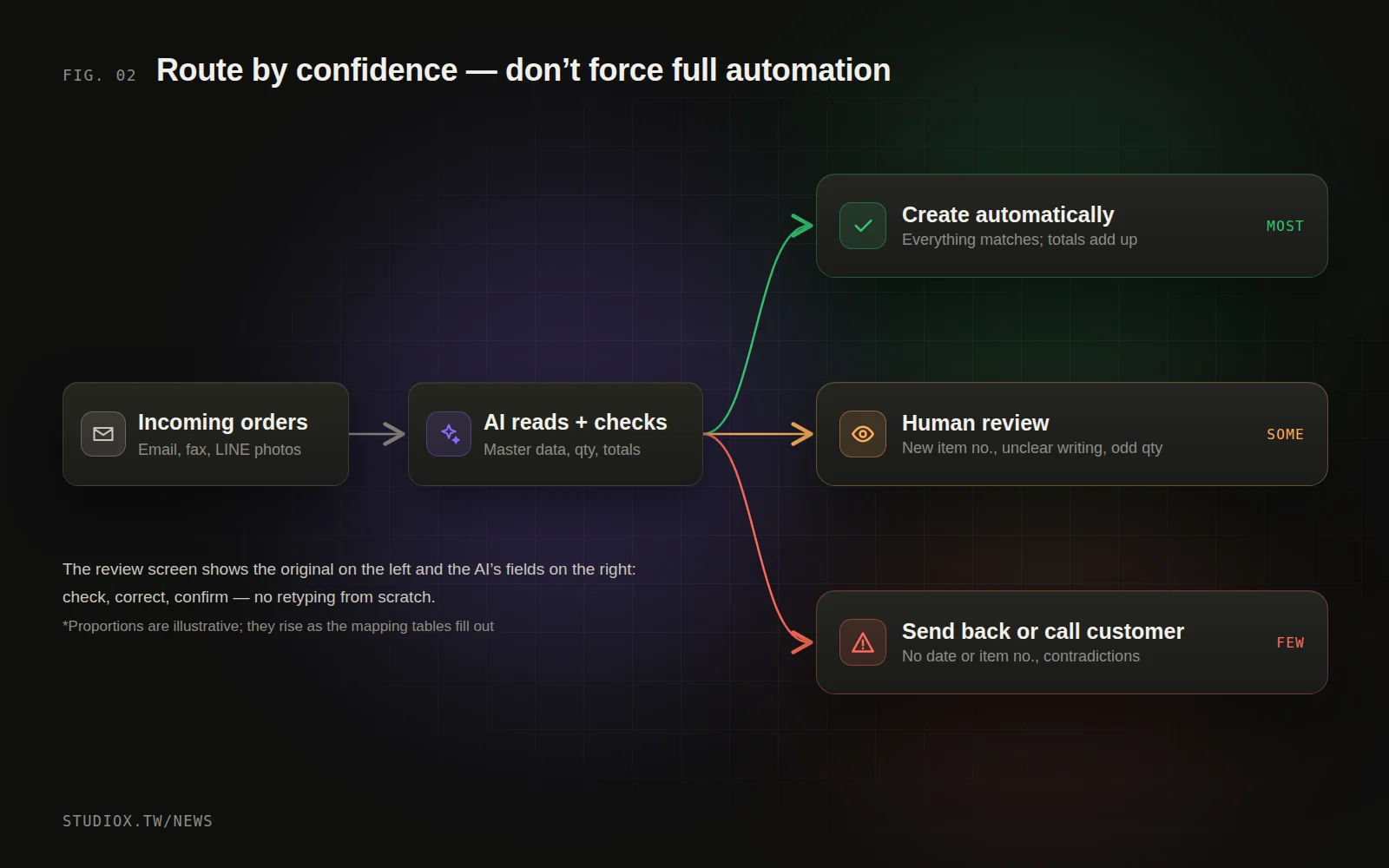
The advantage of this design: you start saving time on day one, and errors don't quietly slip into the system. As the cross-reference tables fill out, the share of orders created automatically gradually rises.
How do you measure accuracy?
When you automate document processing, asking "Is the AI accurate?" isn't enough. We recommend tracking these metrics to see how much the system is really helping:
| Metric | What it means | Why it matters |
|---|---|---|
| Field accuracy | How many of the extracted fields are correct | Measures the quality of the AI's reading itself |
| Auto-creation rate | The share of documents turned into orders with no human edits | Measures the manual work actually saved |
| Average review time | How long each document that needs review takes | Shows how well the review screen is designed |
| Escaped errors | How often errors are found after an order was created automatically | Shows whether your checks are strict enough |
The most important of these is escaped errors: it's better to have people review a few extra orders than to let errors slip quietly into the system. Set conservative thresholds at first, watch for a while, and once you've confirmed that certain customers or document types are consistently accurate, loosen them gradually.
Ways to keep improving accuracy
- Record human corrections: every manual fix tells the system "this customer's way of writing it maps to this part number," so next time it matches automatically.
- Build dedicated rules for key customers: for example, one customer always orders by the dozen, while another always puts a fixed prefix in front of its item numbers.
- Spot-check automatically created orders regularly: even when the system is confident, check a few at random every week to catch problems early.
Beyond orders: what other documents can it handle?
The same approach works for many "read a document, enter it into a system" jobs:
- Requests for quotation: read what the customer is asking for and automatically pull up the items and past quotes, so sales only has to adjust the prices.
- Supplier invoices and statements: match them against purchase orders and goods receipts (see our article on reconciliation headaches in wholesale).
- Shipping and customs documents: extract product descriptions, weights, HS codes and other fields.
- Business cards, application forms, inspection reports: turn them into structured data you can search and analyze later.
What to prepare before you start
- Collect samples: 10–20 real documents from each major customer, including some hard-to-read ones.
- Clean up your master data: customers, part numbers and unit conversions. The cleaner the master data, the higher the automation rate.
- Define the checks: which cases must a person see? For example, amounts above a certain threshold, new customers and new part numbers.
- Run in parallel for a while: the AI makes suggestions while people keep entering orders as usual; compare the two, and switch over once you're confident in the accuracy.
After rollout, sales assistants go from being "the people who type" to "the people who check exceptions." Orders that used to take a whole morning to enter can become ten or fifteen minutes of review, and the time freed up can go to the things that really need a person, like talking with customers and chasing delivery dates. To see whether your documents are a good fit for automation, take a look at our business systems services, or send us a few sample documents.